Chapter 2 Getting Set Up
This book assumes that you have access to an account on a Unix-like operating system (such as Linux) that you can use directly or log in to remotely via the SSH (Secure-SHell) login protocol. Accounts of this type are frequently available at universities and research institutions, though you may also consider using or installing Linux on your own hardware.
2.0.1 Opening a terminal
Before we do anything, we want to be sure we can open a terminal to work in.
If you are using a computer running MacOS, the client software will be command line oriented and is accessible from the Terminal utility. The Terminal is located in the Utilities folder, inside of the Applications folder.2
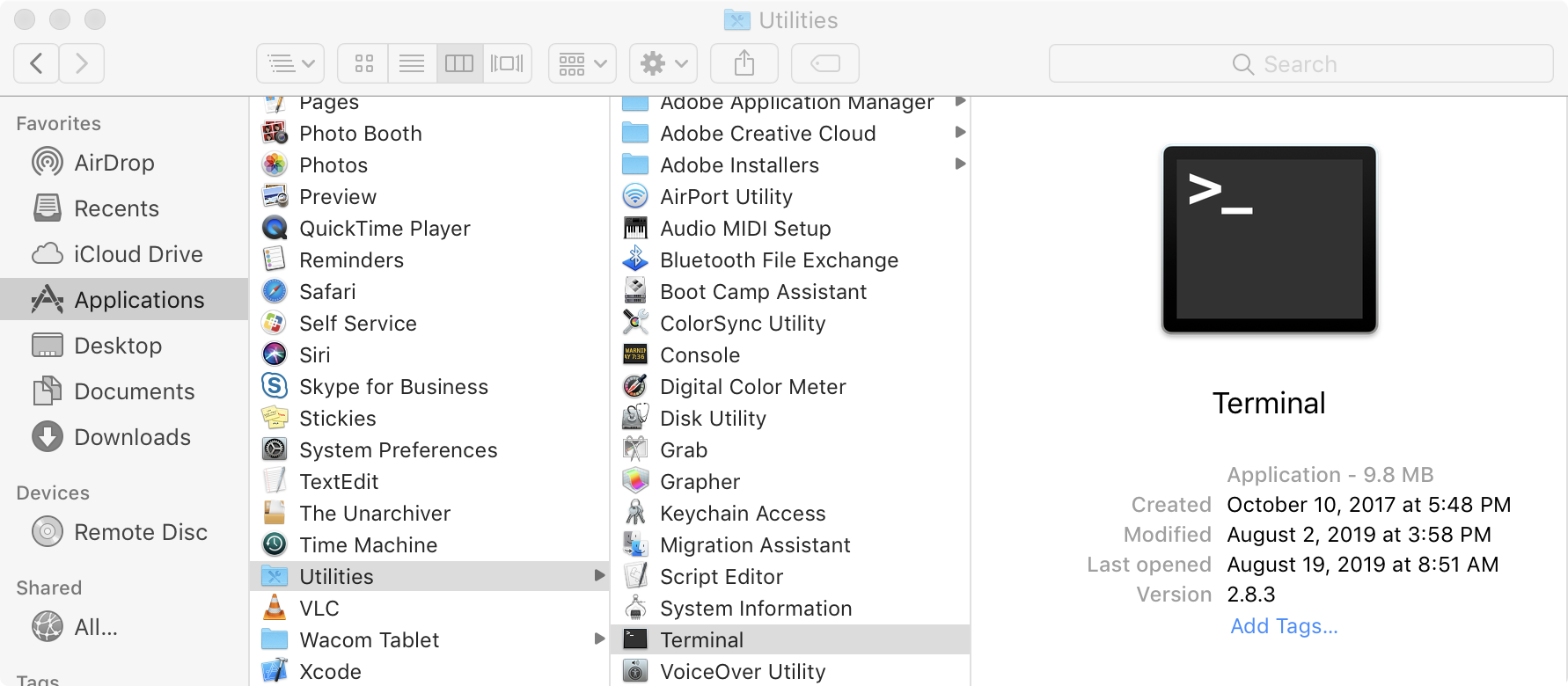
In the window that opens up, you will see a prompt for entering commands. On my computer it looks like this (except for the line numbers along the left):
[oneils@mbp ~]$
If you are running Microsoft Windows, you should install Windows Subsystem for Linux (WSL). After correctly installing, restarting your computer, opening the Ubuntu app, and creating a username and password, you’ll be ready to proceed.
Finally, if you are already running a Linux or other Unix-like operating system, you’ll need to find the Terminal utility on your own.
Logging in
If you have access to a remote Unix-like operating system, you’ll need to log in via SSH (if not, skip ahead). To do this, you will need four things:
- Client software on your own computer.
- The address of the remote computer, called its “host name,” or, alternatively, its IP (Internet protocol) address.
- A username on the remote computer with which to log in.
- A corresponding password on the remote machine with which to log in.
Open a terminal on your computer (the Terminal app for MacOS, WSL on Windows, or a Linux terminal). At the prompt, enter the following: ssh <username>@<hostname or ip>. Note that you don’t actually type the angle brackets; angle brackets are commonly used nomenclature to indicate a field you need to specify. To log in to my account with username oneils at the Oregon State University’s main Linux computer (shell.onid.oregonstate.edu), for example, I would type:
[oneils@mbp ~]$ ssh oneils@shell.onid.oregonstate.edu
After pressing Enter to run the command, you may be asked to “verify the key fingerprint” of the remote computer. Each computer running the SSH login system uses a unique pair of “keys” for cryptographic purposes: the public key is accessible to the world, and only the remote computer knows the private key. Messages encrypted with the public key can only be decrypted with the private key — if you cared to verify with the owner of the remote computer that the public key “fingerprint” was correct, then you could be assured that no one between you and the correct remote computer could see your login session. Unless you have a reason to suspect espionage of some sort, it’s usually safe to enter yes at this prompt. Normally, you will be prompted once for each fingerprint, unless your local computer forgets the fingerprint or the system administrator changes it (or there is indeed an espionage attempt!).
In any case, you will next be asked to enter your password. Note that as you type the password, you won’t see any characters being shown on the screen. This is another security feature, so that no passersby can see the contents or even the length of your password. It does make password entry more difficult, however, so take care when entering it. After logging in to a remote computer, the command prompt will usually change to reflect the login:
[oneils@shell.onid.oregonstate.edu ~]$
Logging in Further, Changing Your Password
Depending on where you are logging in to, you may not be done with the login process. At many universities and research centers, the administrator would prefer that you not do any work on the computer you initially logged in to, because that computer may be reserved just for initial logins by dozens or even hundreds of researchers. As a result, you may need to “check out” a secondary, internal computer for your actual computational needs. Sometimes this can be done by SSHing on the command line to the secondary computer, but at some institutions, you will be asked to run other commands for this checkout process. Check with your local system administrator.
In addition, you may want to change your password after your initial login. Running the passwd command usually suffices, and you will be prompted to enter both your old and new passwords. As usual, for security reasons, no characters will appear when entered. Further, good system administrators never ask for your password, and they are unable to recover it if it gets lost. The best administrators can do is reset it to a temporary one.
SSH: Secure Shell
One might rightfully ask: what did we just accomplish with all of this logging in? On our desktop computer, we used a program called a client to connect to another program, called a server. A server is a program that waits in the background for another program (a client) to connect to it.3 This connection often happens over a network, but connections can occur between programs on the same computer as well. A client is a program that is generally run by a user on an as-needed basis, and it connects to a server. While it’s more correct to define a server as a program that waits for a connection from a client, colloquially, computers that primarily run server programs are also referred to as servers.
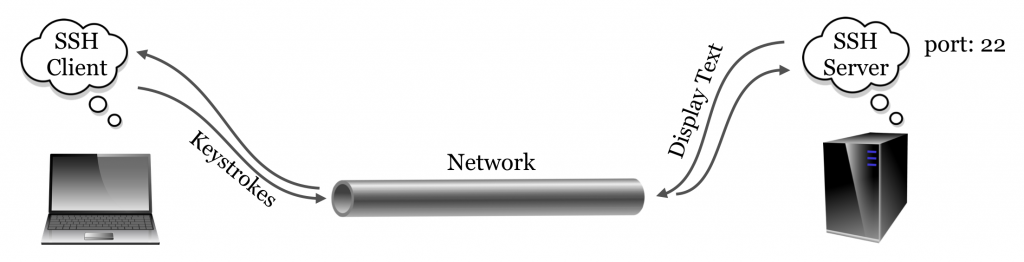
The SSH server and the SSH client communicate using what is known as the SSH “protocol,” simply an agreed-upon format for data transfer. The SSH protocol is quite lightweight: because all of the actual computation happens on the remote machine, the only information that needs to be transferred to the server are the keystrokes typed by the user, and the only information that needs to be transferred to the client are the characters to be displayed to the user. As its name implies, the SSH protocol is very secure owing to its reliance on advanced public-key cryptography.4
The SSH server may not be the only server program running on the remote computer. For example, web servers allow remote computers to serve web pages to clients (like Mozilla Firefox and OS X’s Safari) using HTTP (hypertext transfer protocol). But because there is only one host name or IP address associated with the remote computer, an extra bit (byte, actually) of information is required, known as the “port number.” By way of analogy, if the remote computer were an apartment building, port numbers would be apartment numbers. By convention, SSH connects on port 22 and HTTP connects on port 80, although these ports can be changed by administrators who wish to run their services in nonstandard ways.
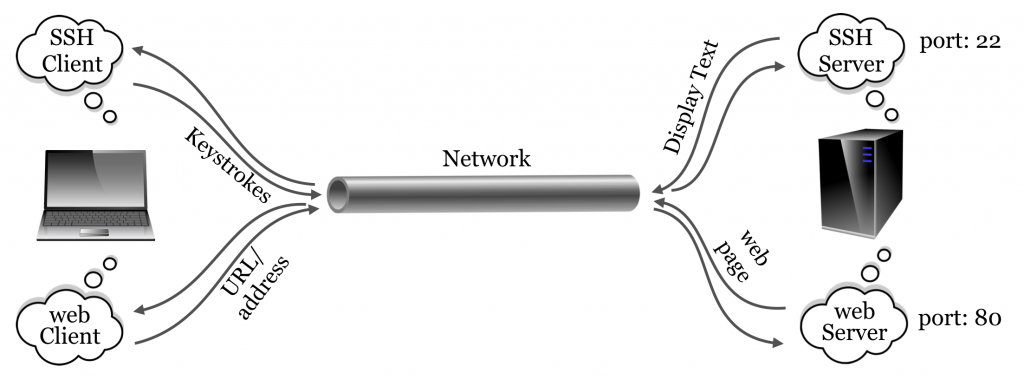
Other protocols of note include FTP (file transfer protocol) and its secure version, SFTP (secure file transfer protocol), designed specifically for transferring files.
Logging Out
Once finished working with the remote computer, we should log out of the SSH session. Logging out is accomplished by running the command exit on the command line until returned to the local desktop or the SSH client program closes the connection. Alternatively, it suffices to close the SSH client program or window — SSH will close the connection, and no harm will be done. Note, however, that any currently executing program will be killed on logout.
If you are working on a remotely hosted virtual machine, it’s a good idea to also suspend the instance so that time spent not working isn’t counted against your usage limit.
Note that, while not required, it’s also recommended to use the exit command to close your terminal in order to save your history. You may then close the window.
[oneils@mbp ~]$ exit

logout

Saving session...
...copying shared history...
...saving history...truncating history files...
...completed.
Exercises
Practice logging in to and back out of the remote machine to which you have access.
Change your password to something secure but also easy to remember. Most Linux/Unix systems do not limit the length of a password, and longer passwords made up of collections of simple words are more secure than short strings of random letters. For example, a password like
correcthorsebatterystapleis much more secure thanTr0ub4dor&3.5A program called
telnetallows us to connect to any server on any port and attempt to communicate with it (which requires that we know the correct messages to send to the server for the protocol). Try connecting withtelnetto port80ofgoogle.comby runningtelnet google.com 80in the Terminal. Issue the commandGET http://www.google.com/to see the raw data returned by the server.
The style of your terminal session likely won’t look like what we show in this book, but you can customize the look of your terminal using preferences. We’ll be spending a lot of time in this environment!↩︎
Sometimes server programs are called “daemons,” terminology that evokes Maxwell’s infamous “demon,” an impossible theoretical entity working in the background to sort gaseous molecules.↩︎
The public-key infrastructure currently in use by SSH is only secure as far as anyone in the academic sphere suspects: the mathematics underlying the key exchange protocol haven’t yet been proven unbreakable. Most mathematicians, however, suspect that they are unbreakable. On the other hand, bugs have been known to occur in the software itself, though they are usually fixed promptly when found.↩︎
These example passwords were drawn from a webcomic on the topic, located at http://xkcd.com/936/.↩︎